
Your page looks perfect in your browser. Everything loads, the images look sharp, and all your text is there. But Google won’t index it, or it ranks for nothing. Here’s the problem: Google might be seeing a very different page than you are.
So how do you see what Google sees? The most accurate way to view the page as Googlebot is the URL Inspection tool in Google Search Console. Paste your URL, click “Test Live URL”, then click “View Tested Page” to see the code and the screenshot Google got.
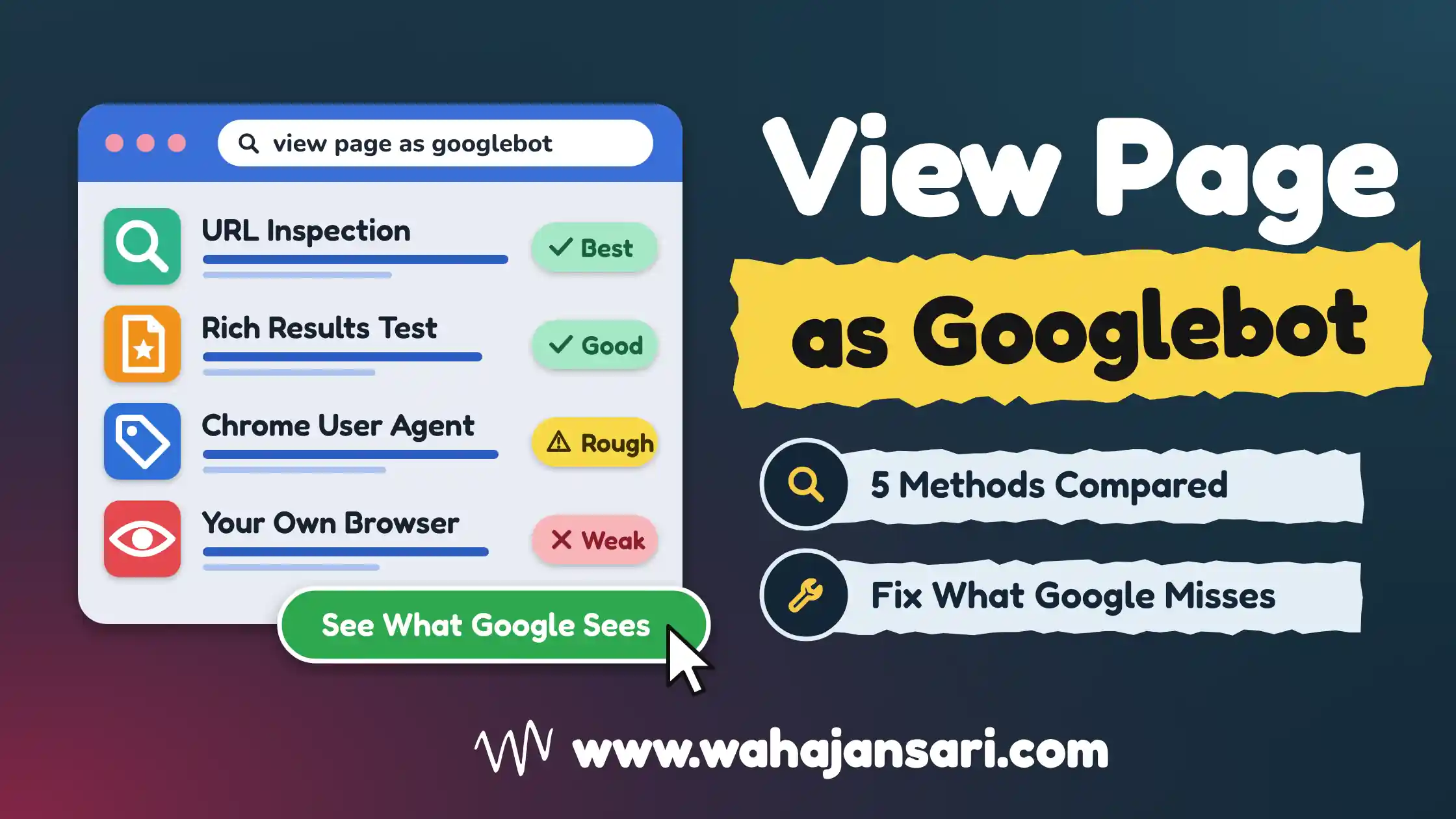
If you don’t own the site, use Google’s Rich Results Test instead. And for a quick check, you can make Chrome pretend to be Googlebot. In this post, I’ll show you all five methods step by step, and tell you which one to trust.
Googlebot View Checker
Paste the HTML Google sees and get this post’s checklist run for you. You can also build the curl test commands, or check if a “Googlebot” in your server logs is real.
The check runs in your browser. Nothing you paste is sent anywhere.
What Does “View Page as Googlebot” Actually Mean?
Googlebot is the program Google uses to visit and read web pages. Viewing a page as Googlebot means looking at your page the way that program sees it, not the way your browser shows it. Most of the time, both versions are the same. When they’re not, you’ve usually found the reason your page isn’t ranking.
Think of your website like a shop. You see it from behind the counter, with all the lights on. Googlebot sees it from the street, through the window. If the window is dirty or the door is locked, it doesn’t matter how nice the inside looks.
One more thing before we start. Google has two versions of Googlebot: one for phones and one for computers. Google says most of its crawling is done by the phone version, so always test as “Googlebot Smartphone” when you get the choice.
Why Google Might See a Different Page Than You
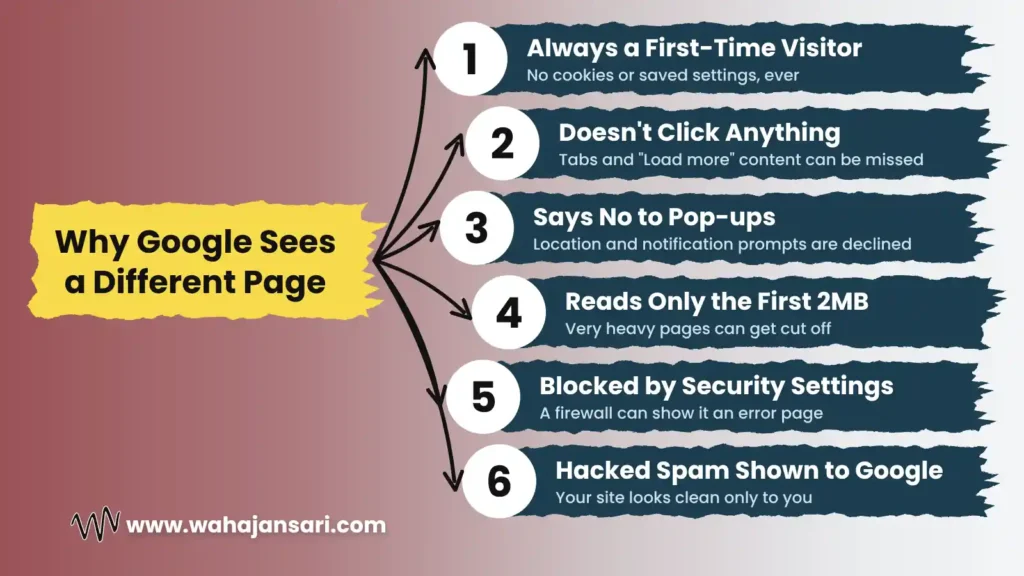
Googlebot can run JavaScript, just like your browser. But it doesn’t behave like a normal visitor, and that’s where problems start. Here are the most common reasons the two versions don’t match:
- It’s always a first-time visitor. According to Google, Googlebot doesn’t keep cookies or saved settings between pages. So anything that only shows up for returning visitors, Google never sees.
- It doesn’t click anything. If your content only appears after someone clicks a tab or a “Load more” button, Googlebot may miss it.
- It says no to permission pop-ups. If your page asks for location or notification access before showing content, Googlebot won’t see that content.
- It only reads the first 2MB of code. Google’s documentation (updated February 2026) says Googlebot stops reading a page’s HTML after the first 2MB. Most pages are much smaller, but very heavy pages can get cut off.
- Your security settings block it. A firewall or security plugin can mistake Googlebot for a bad bot and show it an error page.
- Your site was hacked. Some hacks show spam only to Google, so your site looks clean to you but not to Google.
You won’t notice any of these problems when you open the page yourself. That’s exactly why you should view the page as Googlebot before you blame your content or your backlinks.
Which Method Should You Use?
There are five ways to view a page as Googlebot, and they’re not equally accurate. Here’s a quick comparison so you know which one to pick:
| Method | Use it when | How accurate |
|---|---|---|
| 1. URL Inspection tool | You own the site and have Search Console access | Most accurate (Google’s own test) |
| 2. Rich Results Test | You don’t own the site, or you’re checking a competitor | Very accurate (Google’s own test) |
| 3. Chrome user agent switch | You want a quick check in your browser | Rough check only |
| 4. curl command | You’re comfortable with the command line | Rough check only |
| 5. Googlebot simulators and crawlers | You need to check many pages at once | Rough check only |
My simple rule: the first two are Google’s own tools, so they show what Google really gets. The other three only pretend to be Googlebot. They’re great for quick checks, but if they disagree with Google’s tools, trust Google’s tools.
Method 1: View Page as Googlebot With the URL Inspection Tool
If you own the site, start here. This tool lives inside Google Search Console, and it loads your page using Google’s own systems. That makes it the closest you can get to what Googlebot really sees. Here’s how to use it:
- Open Google Search Console and choose your website.
- Paste the full page URL into the search bar at the top.
- Click Test Live URL and wait a few seconds.
- Click View Tested Page.
- Look at the three tabs: HTML (the code Google got), Screenshot (how the page looked), and More info (files that failed to load, and any errors).
One thing confuses a lot of people here. The first report you see is old data from Google’s last visit. The live test shows your page as it is right now, so always click Test Live URL first.
There’s also a daily limit on how many URLs you can test, according to Google’s help page. So use this tool for your most important pages, not for checking thousands of pages one by one.
I recently came across a technical SEO issue where a client's important service page wasn't getting indexed despite being live and accessible to visitors. At first glance, everything looked fine in the browser. However, when I inspected the URL using Google Search Console, I noticed that Googlebot wasn't seeing the main content as expected. The page relied heavily on JavaScript, and some of its important sections weren't appearing in Google's rendered HTML.
I took responsibility for identifying the issue and finding out why Google wasn't accessing the actual page content. I started with Google Search Console's URL Inspection tool and checked the rendered HTML and screenshot. I also used Chrome DevTools to compare the normal browser output with the page's HTML response. This helped me narrow down the problem to JavaScript-dependent content that wasn't being rendered correctly.
After identifying the issue, I documented the affected sections and shared the findings with the development team. I recommended making critical page content available in the initial HTML response through server-side rendering or prerendering instead of relying entirely on client-side JavaScript. I also recommended checking that essential resources weren't blocked from Googlebot.
After the changes, I validated the updated page using Google Search Console's Live URL Test and checked whether Googlebot could access the complete content. This helped address the rendering barrier and gave the page a better foundation for indexing. One thing I've learned from technical SEO is that a page looking perfect to visitors doesn't necessarily mean Google sees it the same way.
Method 2: Rich Results Test for Pages You Don’t Own
What if you don’t have Search Console access? Maybe it’s a new client, or you want to look at a competitor’s page. In that case, use Google’s Rich Results Test. Google’s own help page recommends it for viewing any public page, as long as the page doesn’t need a login.
Here’s how it works. Open the Rich Results Test, paste the URL, and run the test. When it finishes, click View tested page and check the HTML and the screenshot, just like in Method 1.
Most people think this tool is only for checking schema markup. But it’s also the easiest free way to view a page as Googlebot on a site you don’t control. Run it before your next client call, and you can point out problems before the client even knows they exist.
Method 3: How to View Website as Googlebot in Chrome
Every time your browser opens a page, it sends a small label that says who it is. This label is called the “user agent”. In this method, you change Chrome’s label to Googlebot, so the website thinks Google is visiting. Here’s how:
- Open the page in Chrome and press F12 (on a Mac, press Cmd + Option + I).
- Press Ctrl + Shift + P (on a Mac, Cmd + Shift + P), type “Network conditions”, and press Enter.
- Find the User agent section and untick Use browser default.
- Choose Googlebot Smartphone from the list.
- Reload the page and see what changes.
For better results, do this in a Chrome Guest window. That way, your cookies and logins don’t affect what you see, which is closer to how Googlebot visits.
Just remember, this is only a rough check. Chrome’s own documentation says changing the user agent only changes what the website sends you. The visit still comes from your computer, not from Google. So some websites can spot your “fake Googlebot” and block it, even though they let the real one in.
Method 4: Test Website With Googlebot’s User Agent Using curl
This method is for people who are comfortable with the command line. If that’s not you, skip it, because Method 3 does almost the same job. curl asks a website for a page while pretending to be Googlebot, then shows you exactly what the server sent back.
Open your terminal and paste this command. Replace the URL at the end with your own page:
curl -I -A "Mozilla/5.0 (Linux; Android 6.0.1; Nexus 5X Build/MMB29P) AppleWebKit/537.36 (KHTML, like Gecko) Chrome/W.X.Y.Z Mobile Safari/537.36 (compatible; Googlebot/2.1; +http://www.google.com/bot.html)" https://example.com/your-page
That long text is Googlebot Smartphone’s official label, taken from Google’s crawler list. Replace “W.X.Y.Z” with your current Chrome version number, which you’ll find in Chrome under Settings, then About Chrome. The command shows you the page’s status code: 200 means the page loaded fine, and 403 or 503 means something blocked it.
Let me give you an example. Say your page shows a 200 for normal visitors but a 403 for Googlebot. That usually means a security rule is blocking anything that calls itself Googlebot, and that includes the real one. Fix that rule fast, or your pages will slowly drop out of Google.
Method 5: Googlebot Simulator and Crawler Tools
A Googlebot simulator is a free online tool that does this work for you. You paste a URL, and it visits the page as Googlebot and shows you the title, headings, links, and text it found. It’s a handy way to view a page as Googlebot if you don’t want to touch Chrome’s settings or the command line.
But be careful with these tools. Many free Googlebot crawler simulator tools can’t run JavaScript. So a modern website can look broken in the tool, even when Google sees it fine. Always confirm a scary result with Method 1 or Method 2 before you panic.
If you need to check a whole website, a one-page tool won’t be enough. SEO crawlers let you scan hundreds or thousands of pages as Googlebot Smartphone in one go. For now, that’s the best option for big sites, but as you’ll see later, I think that’s about to change.
What to Check When You View Page as Googlebot
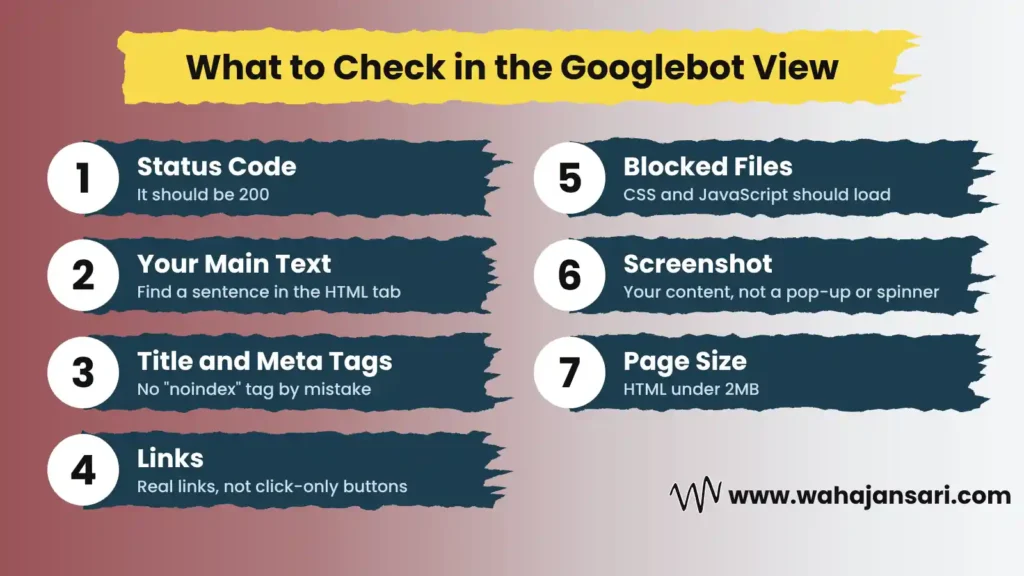
Seeing the Googlebot version is only half the job. You also need to know what to look for. Here’s my checklist:
- Status code: This is the number your server sends back. It should be 200, and anything else means Google may not reach your content.
- Your main text: Copy a sentence from the bottom of your page and search for it in the HTML tab. If it’s missing, Google can’t index it.
- Title and meta tags: Check that your title, meta description, and canonical tag (the tag that tells Google which URL is the main version) are correct. Also make sure there’s no “noindex” tag by mistake.
- Links: Your menu and product links should show up as real links in the HTML. If they only work when clicked, Google may not follow them.
- Blocked files: In More info, look for CSS or JavaScript files that didn’t load. These are often blocked by your robots.txt file.
- The screenshot: It should show your content, not a cookie pop-up, a loading spinner, or an error message.
- Page size: If your page’s HTML is bigger than 2MB, Google may not read the bottom part. This usually happens when a theme or plugin stuffs too much code into the page.
One more check that most guides miss: hacked pages. Google’s guide to the Japanese keyword hack explains that hackers often hide spam so the site owner can’t see it. The same guide recommends the URL Inspection tool to find it. If Search Console suddenly shows impressions for Japanese words or brand names you don’t sell, inspect those URLs right away.
Is That Visit Really Googlebot? How to Use a Googlebot User Agent Checker
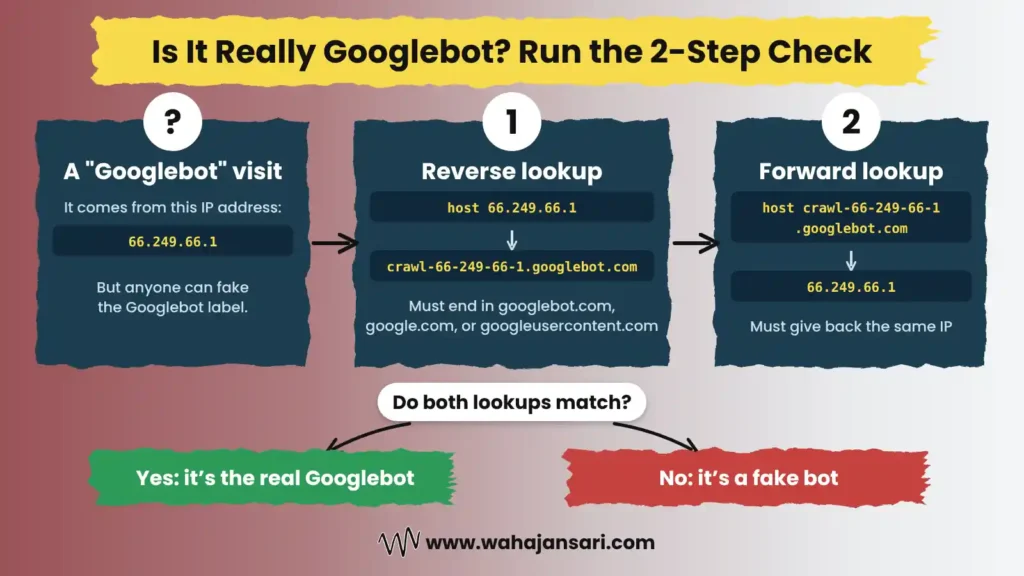
This part is for when you look at your server logs (the record of every visit to your site). Here’s the catch: anyone can pretend to be Googlebot. Google itself warns that other crawlers often fake the Googlebot label, so a visit that says “Googlebot” might be a scraper in disguise.
That’s why a Googlebot user agent checker that only reads the label isn’t enough. It tells you what the visitor claims to be, not who it really is. To be sure, check the visitor’s IP address with two quick lookups, as Google recommends:
- Run host on the IP address from your logs. The result should end in googlebot.com, google.com, or googleusercontent.com.
- Run host again on that result. It should give you back the same IP address.
host 66.249.66.1
host crawl-66-249-66-1.googlebot.com
If both lookups match, it’s the real Googlebot. If they don’t, it’s a fake pretending to be Google.
Will AI Tools Like Claude Replace Paid Crawlers for This?
Now here’s my honest opinion. Since Claude came along, every SEO has basically got their own personal crawler. I think in the near future, SEOs won’t need expensive SEO tools or desktop crawlers for technical audits. They’ll just ask Claude to audit their website.
Let me give you an example of what’s already possible. When Claude can run code, you can give it a list of 50 URLs and ask: “Open each page twice, once as Googlebot Smartphone and once as a normal Chrome browser, and tell me which pages look different.” That’s a full “view page as Googlebot” check on 50 pages, from one simple request.
Right now, there are limits on how many pages you can check in one go. But I’m fairly sure that will be solved soon. Once it is, Claude will be able to crawl websites with 500 to 1,000 pages or more. Then those monthly crawler subscriptions will start to feel like a gym membership you forgot to cancel.
To be fair, AI won’t replace Google’s own tools. Claude still visits from its own computers, not from Google’s, so it’s a smart rough check, just like Chrome and curl. My advice: check how Google sees your website at scale with Claude, then confirm your most important pages with URL Inspection.
FAQs
Is it safe to change my user agent to Googlebot?
Yes. It only changes how your own browser introduces itself, so it can’t hurt your rankings. But if you find that your site shows Google different content than it shows visitors, fix it. Google’s spam policies call that “cloaking” when it’s done to manipulate rankings.
What replaced Fetch as Google?
The URL Inspection tool replaced Fetch as Google in 2019, when Google shut down the old Search Console. The Mobile-Friendly Test is gone too, since December 2023. If a tutorial still tells you to use either one, it’s out of date.
Should I trust the screenshot or the HTML?
Trust the HTML. Google’s JavaScript SEO guide says Google uses this final HTML to index your page. The screenshot is nice for a quick look, but it can’t show you a hidden “noindex” tag or a wrong canonical tag.
How often should I check my pages as Googlebot?
Check whenever you change how your site is built: a new theme, a site migration, a new security plugin, or a new hosting setup. Also check whenever a page suddenly drops out of Google. For your most important pages, a quick check once a month is enough.
Final Thoughts
If you remember one thing from this post, let it be this: your own browser is the worst place to judge what Google sees. It has your cookies, your login, and your saved files, and Googlebot has none of those. So view the page as Googlebot with URL Inspection whenever you can, and use the other methods for quick checks.
And keep an eye on AI. The SEOs who learn to run these checks with Claude now will be way ahead of everyone else. This week, view the page as Googlebot for your five most important pages, and see what Google has been seeing all along.
Discover more from Wahaj Ansari
Subscribe to get the latest posts sent to your email.