
Picture this. You launch a shiny new website, publish 30 solid blog posts, and wait for Google to notice. Three months later, nothing. Then someone finally looks under the hood and finds the CMS was working against you all along: titles you couldn’t edit, hundreds of empty tag pages in the index, and every old URL from your previous site returning a 404.
So what are the SEO requirements for a CMS? CMS SEO requirements are the features a content management system needs so search engines can crawl, understand, and index your pages: editable titles, meta descriptions, and URLs, automatic 301 redirects, canonical and noindex controls, self-updating XML sitemaps, robots.txt access, structured data, fast mobile-friendly templates, and server-rendered HTML.
Below, I’ll split those into dealbreakers and nice-to-haves, give you a quick-reference checklist, and walk you through a 30-minute test you can run on any platform before you commit. Choosing a new CMS, briefing developers on a custom build, or auditing the one you already have? This is the list I’d work from.
Answer a few quick questions about your CMS (or the one you’re thinking of switching to). You’ll get a pass or fail verdict and a fix list you can hand to your developer.
Why CMS SEO Requirements Matter More Than Your SEO Plugin
Your CMS decides what your HTML looks like, how your URLs are built, and what happens when a page moves or dies. An SEO plugin can only change what the platform lets it change. That’s why SEO requirements for CMS platforms deserve a seat at the table before anyone signs a contract, not after launch.
I like to think of it like renting a flat. Before you sign, you check the water pressure, the wiring, and whether the landlord lets you drill holes in the walls. Fresh paint and nice curtains (your plugins) make the place look good, but they won’t fix a pipe that leaks into the flat downstairs.
And this isn’t a niche problem. W3Techs data from November shows WordPress alone runs 39.5% of all websites, and about two thirds of all sites run on a CMS it tracks. So for most of the web, the CMS defaults are the SEO defaults, whether anyone checked them or not.
The Must-Have CMS SEO Requirements (Your Dealbreakers)
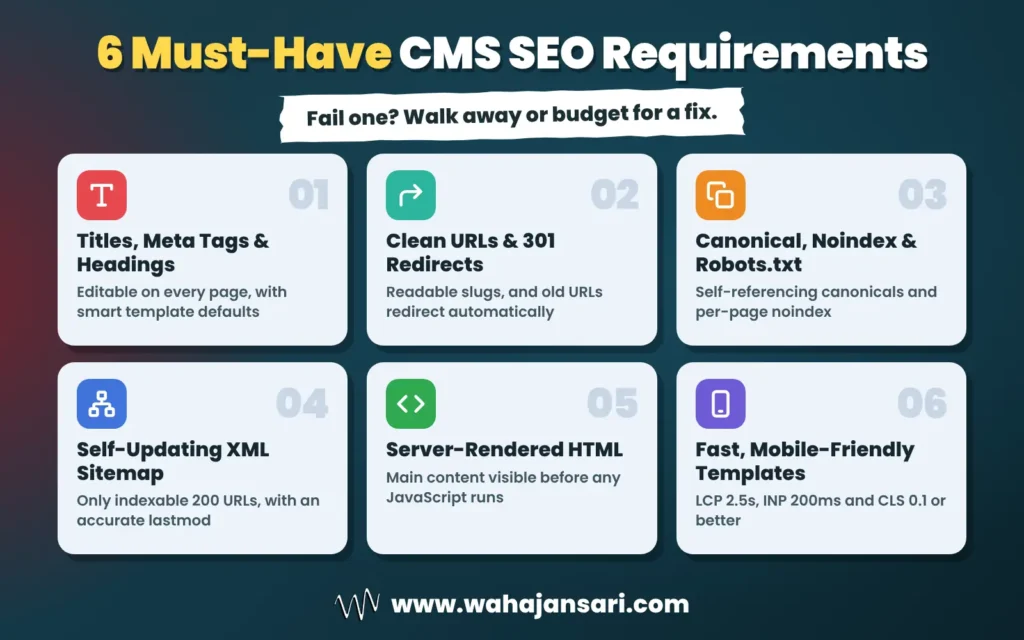
If a platform fails any of the six requirements below, I’d walk away or budget for custom development before launch. These aren’t advanced tricks. They’re the plumbing, and each one lines up with how Google’s own documentation says crawling and indexing work.
1. Full control over titles, meta descriptions, and headings
You need to edit the title tag and meta description on every page, not just the homepage. You also need templates that set sensible defaults for new pages, so 500 product pages don’t all ship with the same title. Headings matter too: the editor should output real H1 to H3 tags, not bold text pretending to be a heading.
Here’s a myth worth dropping while we’re here. Google says there’s no fixed limit on how long a title can be, and it builds snippets mostly from page content, using your meta description only when it describes the page better. So don’t reject a CMS over a missing character counter. Reject it if you can’t edit those fields at all.
2. Clean URLs and automatic 301 redirects
Your URLs should be short, readable words like /blog/cms-seo-guide, not /index.php?id=4821&cat=7. Google recommends hyphens instead of underscores and as few parameters as possible, and it treats /Shoes and /shoes as two different URLs. So the CMS should let you set the slug yourself and force one consistent case.
Redirects are the requirement people forget until it hurts. When you change a slug, the old URL should 301 to the new one automatically, or at least through a redirect manager you can use without a developer. Google says server-side permanent redirects have the best chance of being read correctly, so a JavaScript or meta refresh workaround isn’t good enough.
3. Canonical, noindex, and robots.txt controls
Every CMS creates duplicates, even the good ones. One product page can quietly live at five URLs thanks to sorting options, tracking parameters, print views, and filters. Your CMS needs a self-referencing canonical tag by default, plus a way to override it per page, because Google treats rel=“canonical” as a strong signal of your preference, not a command.
You also need a per-page noindex option and an editable robots.txt file, and you need to know they do different jobs. Robots.txt manages crawling, and Google says it’s not a way to keep a page out of search. Worse, if you block a page in robots.txt, Google can’t see the noindex tag on it, so the page can still show up. It’s an easy mix-up, and a costly one.
4. XML sitemaps that update themselves
Think of your XML sitemap as the guest list you hand to Google, so it should never be out of date. The CMS should build it automatically and update it whenever you publish, edit, or delete a page, listing only indexable, canonical URLs that return a 200 status. Redirects, noindexed pages, and 404s don’t get an invite.
Two details separate a good sitemap from a lazy one. First, Google ignores the priority and changefreq values but does use lastmod when it’s consistently accurate, so a CMS that stamps today’s date on every URL is wasting the one field that counts. Second, a single sitemap tops out at 50,000 URLs or 50MB uncompressed, so bigger sites need a CMS that splits sitemaps and builds an index file.
5. Server-rendered HTML that any crawler can read
Right-click any page on your CMS and view the source. If your main content is sitting there in the raw HTML, great. If you see an empty container and a pile of script files, your content only exists after JavaScript runs.
Google can render JavaScript, but pages wait in a rendering queue, and its documentation says server-side rendering or pre-rendering is still a good idea because not all bots can run JavaScript. That matters more every year, since your content now needs to reach far more crawlers than just Googlebot. My stance: if the CMS or its front end can’t serve the main content in the initial HTML, that’s a dealbreaker for any site that relies on organic traffic.
6. Fast, mobile-friendly templates
Google indexes and ranks the mobile version of your content, so a responsive theme is non-negotiable. Your mobile pages need the same content, structured data, titles, and meta descriptions as desktop. A theme that hides half the content on phones is hiding it from Google too.
Speed is where a weak CMS gives itself away. Google’s Core Web Vitals call a page “good” at an LCP of 2.5 seconds or less, an INP of 200 milliseconds or less, and a CLS of 0.1 or less, measured at the 75th percentile of real visits. A bloated theme stacked with scripts and a heavy page builder can miss those targets before you’ve added a single image, and no plugin fully undoes that.
SEO-Friendly CMS Features That Separate Good From Great
Once the dealbreakers pass, these are the SEO-friendly CMS features I’d use to compare two platforms that both look fine on paper. Not every site needs all of them. A local bakery doesn’t need hreflang, but a store selling in five countries absolutely does.
- Structured data you can control. Look for JSON-LD output per template (Article, Product, Breadcrumb, Organization) plus room for custom schema. Google recommends JSON-LD, though valid markup still doesn’t guarantee rich results.
- Proper multilingual support. If you run language or country versions, the CMS should output hreflang tags where each version lists itself and every alternate, plus an x-default. Miss the return links and Google ignores the tags.
- Image SEO basics. You want an alt text field on every image, sensible filenames kept on upload, automatic resizing, and images placed as real image elements, because Google doesn’t index CSS background images.
- Pagination done right. Each paginated page needs its own URL and its own canonical. Google no longer uses rel=next/prev and says not to canonicalize later pages to page one.
- Faceted navigation controls (for eCommerce). Filters for size, color, and price can spin up millions of URLs. The CMS should let you block filter parameters in robots.txt or keep them crawlable with a consistent parameter order, as Google’s faceted navigation guidance describes.
- A safe staging environment. Staging should sit behind a password, not just a noindex tag, so it never leaks into search.
- Bulk editing and templates. Updating 2,000 meta descriptions one page at a time is how SEO projects go to die. CSV import or rule-based templates save weeks.
- IndexNow support (a bonus, not a must). It pings Bing and several other engines when content changes, but Google isn’t on the list of participating engines, so don’t pick a CMS for this alone.
If two platforms tie on the dealbreakers, these features are your tiebreaker. Just weigh them against your site type, not against a vendor’s feature page.
Your CMS Technical SEO Checklist (Quick Reference)
Here are all the CMS SEO requirements above, squeezed into one table. Use it as a CMS technical SEO checklist when you compare platforms, brief developers, or audit the site you already have.
| Requirement | What good looks like | Quick test |
|---|---|---|
| Titles and meta descriptions | Editable per page, with template defaults | Edit both, then check the page source |
| Headings | Real H1 to H3 tags from the editor | Inspect a heading in the source |
| URLs | Short, readable, hyphenated, one case | Create a page and edit its slug |
| Redirects | Automatic server-side 301 on slug changes | Change a slug, then visit the old URL |
| Canonicals | Self-referencing by default, editable per page | Add ?utm_source=test and check the canonical |
| Noindex and robots.txt | Per-page noindex, editable robots.txt | Set noindex, then check the meta robots tag |
| XML sitemap | Auto-updated, only indexable 200 URLs | Open /sitemap.xml after publishing |
| Rendering | Main content in the initial HTML | View source, search for a sentence from the page |
| Mobile and speed | Responsive, passes Core Web Vitals | Run PageSpeed Insights on mobile |
| Structured data | JSON-LD per template, customizable | Run Google’s Rich Results Test |
| Hreflang (if needed) | Self and return links, plus x-default | Check the head of two language versions |
| Images | Alt text field, real image elements, compression | Upload an image and inspect the output |
Notice the last column. Most checklists stop at the feature name, but a feature that exists on a pricing page and a feature that actually works on your site are two very different things. Sales demos are wonderful at showing you the first kind.
How to Test CMS SEO Requirements Before You Commit
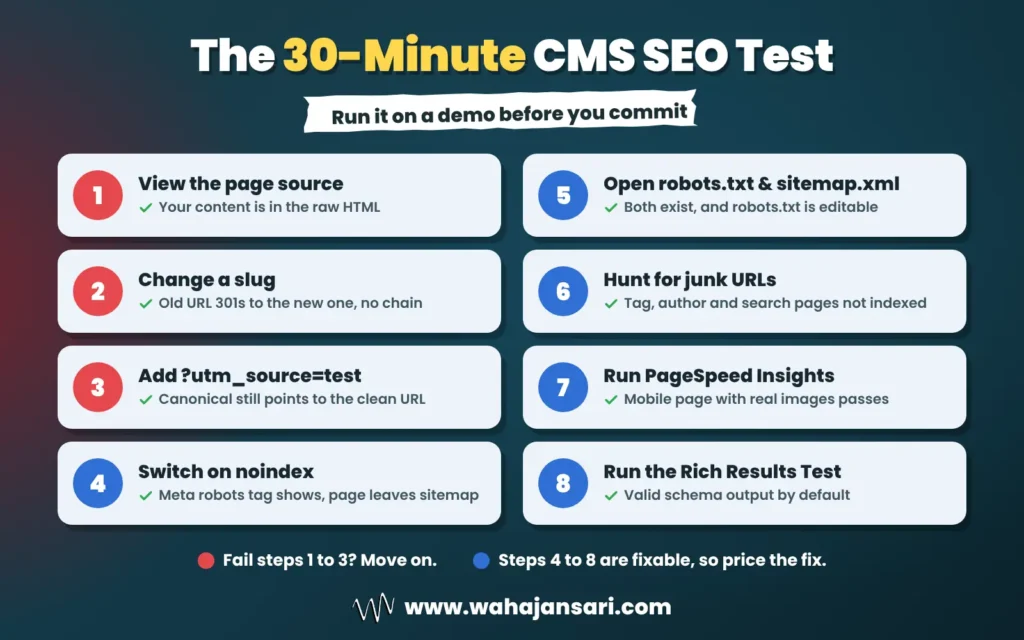
Never trust a feature list. Spin up a demo or trial, add five or six real pages, and spend 30 minutes trying to break things. Here’s the order I’d run the test in:
- Publish a real post and view the source. Search the raw HTML for a sentence from your content. If it isn’t there, the content depends on JavaScript.
- Change the slug. Then visit the old URL. You want a single 301 hop to the new address, not a 404 or a chain of redirects.
- Add a tracking parameter. Load the page with ?utm_source=test and confirm the canonical still points to the clean URL.
- Switch on noindex. Check that the meta robots tag appears in the source and that the page drops out of the sitemap.
- Open /robots.txt and /sitemap.xml. Both should exist, robots.txt should be editable, and the sitemap should list what you expect.
- Hunt for junk URLs. Look for auto-generated tag, author, date, search result, and media attachment pages, and check whether they’re indexable by default.
- Run PageSpeed Insights on mobile. Use a page with real images and your planned theme, not the vendor’s empty demo.
- Test structured data. Paste a post URL into Google’s Rich Results Test and see what schema the CMS outputs on its own.
If a platform fails steps 1 to 3, I’d move on. Steps 4 to 8 usually have fixes, but each fix costs developer time, so put a price on it before you compare quotes. That’s how CMS SEO requirements stop being a wish list and become a simple pass or fail.
CMS SEO Settings and Configuration to Fix on Day One
Meeting your CMS SEO requirements doesn’t mean you’re done, because even a strong CMS can ship with defaults that quietly hurt you. Before launch, go through the CMS SEO settings and configuration below. These are the ones that tend to slip through on launch week.
- The “block search engines” switch. Many platforms have a setting that hides the site from search engines during development. Make sure it’s off on launch day, and that staging is protected by a password instead.
- Thin archive pages. Tag, author, and date archives can create hundreds of near-empty pages. Noindex the ones that add nothing, or turn them off completely.
- Internal search result pages. Every search a visitor runs can create a new URL. Keep these out of the index.
- Media attachment pages. Some platforms give every uploaded image its own thin page. Redirect those to the image file or the parent post.
- Duplicate URL versions. Pick one version (HTTPS, with or without www, with or without a trailing slash, lowercase) and 301 everything else to it.
- Sitemap leftovers. Strip redirected, noindexed, and deleted URLs so the sitemap only lists pages you actually want indexed.
While working on a mobile app testing website for a SaaS client, I came across an interesting CMS SEO issue. We were preparing a new content hub, and during my technical review, I noticed that the page was set to noindex, nofollow. That was fine while it was still a draft, but Yoast wasn’t generating a canonical tag or including the page in the XML sitemap. I also checked Ahrefs and found that the page had no internal links pointing to it.
My responsibility was to make sure the page wouldn’t face indexing problems after launch. I reviewed the WordPress SEO settings, robots.txt, XML sitemap, and page source to understand how the CMS was handling everything. The main concern wasn’t the content itself. It was making sure all the technical SEO elements were properly configured before publishing.
I prepared a clear checklist for the development and content teams. This included removing the noindex directive at launch, verifying the self-referencing canonical tag, confirming sitemap inclusion, and adding relevant internal links from existing pages. I also made sure each step could be checked rather than simply trusting the CMS settings.
By the end of the review, I’d identified the potential indexing issues and documented what needed to be fixed and verified before launch. I didn’t want the team discovering these problems weeks after publishing. That’s something I’ve learned from working on technical SEO projects: a good CMS setup isn’t just about having SEO features. It’s about making sure those features actually work when you need them.
Here’s my rule of thumb for all of this: if a URL type wouldn’t make a good landing page from Google, it probably shouldn’t be indexed. Ask that question about every page type your CMS creates, and you’ll catch most of these problems in a single sitting.
CMS SEO Best Practices for AI Search
Good news: AI search doesn’t add a new layer of CMS SEO requirements. Google says there are no extra technical requirements or special optimizations needed to appear in AI Overviews or AI Mode, and you don’t need new machine-readable files, AI text files, or special markup. A page just has to be indexed and eligible to show in Google Search with a snippet.
That means the CMS SEO best practices above are your AI search strategy. Server-rendered content, clean headings, self-contained answers, and accurate structured data make your pages easier for any system to read and quote. And don’t forget the snippet part: a page that’s blocked from crawling or marked nosnippet doesn’t meet that bar, however good it is.
So what about llms.txt? I’d treat it as optional at best. Google’s own guidance says you don’t need AI text files to show up in its AI features, so fix your canonicals and rendering first and add it later only if you’ve got time to spare.
FAQs
Which CMS is best for SEO?
The best CMS for SEO is the one that meets your CMS SEO requirements for your type of site, not the one with the loudest marketing. WordPress, Shopify, Webflow, and Drupal can all rank well when they’re set up properly. A blog, a 10,000-product store, and a multilingual corporate site have very different needs, so run the 30-minute test on your shortlist instead of picking by reputation.
Are SEO plugins enough to make a CMS SEO-friendly?
SEO plugins handle a lot of the metadata layer, like titles, sitemaps, canonicals, and schema. But they can’t touch the deeper CMS SEO requirements, like template speed, server-side rendering, or a URL structure the platform locks down. Think of plugins as a fix for missing settings, not missing foundations.
Is a headless CMS bad for SEO?
A headless CMS isn’t bad for SEO, but it moves most CMS SEO requirements onto your front end. The content model needs fields for titles, meta descriptions, slugs, canonicals, and noindex, and the front end has to render the main content on the server or at build time. Get those two right and a headless setup can be fast and very crawlable.
What should a CMS SEO requirements document include?
A CMS SEO requirements document should list each dealbreaker as a testable statement, such as “changing a slug creates a 301 redirect from the old URL automatically.” Add the should-have features your site type needs, the settings you want on launch day, and who signs off on each test. Vague lines like “must be SEO-friendly” give a vendor room to say yes to everything.
Can you switch CMS without losing rankings?
You can switch CMS without long-term ranking losses if you map every old URL to its new equivalent and set up server-side 301 redirects. Google says visibility may fluctuate temporarily during a move and recommends keeping redirects in place for at least a year. Keep content, metadata, and internal links equivalent, and watch Search Console closely for the first few weeks.
Final Thoughts
If you remember one thing, make it this: check the plumbing before you move in. Content and links do the heavy lifting in SEO, but they can only do it on a platform that lets search engines crawl, read, and index your pages without a fight.
Most advice on SEO optimization for content management systems starts with which plugin to install. I’d start one layer lower. Take the CMS SEO requirements in this post, turn them into pass or fail tests, and make every platform on your shortlist earn its place. Your future self (the one not untangling 3,000 broken URLs at midnight) will thank you.
Discover more from Wahaj Ansari
Subscribe to get the latest posts sent to your email.